On this page
What this backup should let you recover #
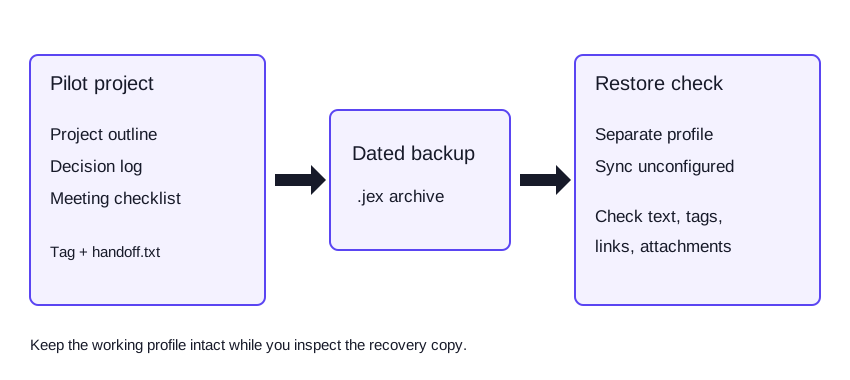
The goal is a dated JEX archive that you can restore into a separate Joplin profile and inspect. You will check the note text, notebooks, tags, and attachments before trusting the backup with real work.
JEX is Joplin's export format for moving notes and their associated data back into Joplin. It is different from copying readable Markdown files for another editor, and it is different from synchronizing changes between devices.
Before you start
- Use Joplin Desktop with the notes you want to back up available locally.
- Finish any expected synchronization and make sure important attachments have downloaded.
- Choose a backup folder outside your active Joplin profile, with enough space for the archive.
- Keep the working profile and its synchronization arrangement intact while checking the restore.
This guide uses desktop menu names. Windows and Linux use Tools > Options for settings; macOS places settings under the application menu. The backup and import operations described below use the File menu.
1. Make a small recovery check you can recognize #
Before relying on a backup system, add a harmless test notebook named Pilot project. Give it these three notes:
| Note | Sample content | What it checks |
|---|---|---|
| Project outline | Goal: document our support-request process. Attach handoff.txt. | Text and an attached file |
| Decision log | Decision: keep the original diagram and a reader-friendly export. | A separate note and a tag |
| Meeting checklist | Confirm owner; review missing-detail branch; check exported labels. | Multiline content |
Add a backup-check tag to the decision log. Use a small text attachment containing a sentence you can recognize, such as Pilot handoff: source file and export belong together. Avoid using confidential documents for the test.
You can use the sample files instead of creating the three notes yourself. Extract the ZIP, import its notes folder as Markdown, then attach the separate handoff.txt file to Project outline and add the tag to Decision log. To test a link too, copy Decision log's Markdown link from Joplin and paste it into Project outline. The sample text is original material for this guide.
Write down what must survive: three note titles, the tag, the attachment, and the expected text. A checklist is more useful than opening an archive and deciding it looks roughly right.
2. Export a dated JEX archive #
In Joplin Desktop, use File > Export all > JEX - Joplin Export File to create a full notes export. If you only want to export a particular notebook for a first trial, use that notebook's Export command and select JEX.
Choose a descriptive filename, such as joplin-notes-2026-10-07.jex, and save it to the backup folder. Wait for the export to complete before moving or copying the file.
For a full recovery archive, prefer one JEX containing the collection rather than several unrelated notebook exports. The Backup plugin documentation explains that separately exported and imported archives can complicate internal note links.
Check that the file exists, has a plausible nonzero size, and has the expected date. Those are preliminary checks, not proof that the content can be recovered. The restore test is the important part.
3. Keep a copy outside the live sync arrangement #
Copy the completed archive to another suitable location. That might be a backup drive or a backup service you already use. Keep dated copies so one damaged or mistaken export does not immediately replace every older recovery point.
Treat the archive as readable note data. Do not assume that Joplin's end-to-end sync encryption automatically encrypts a JEX export. If the contents need protection, use a storage or encryption method appropriate to your device and recovery plan, and keep the information needed to unlock it.
Synchronization and backup serve different purposes. Sync distributes changes, including changes you later regret. A dated backup gives you a separate point to inspect and recover. Keeping the only backup in the same live process removes much of that benefit.
4. Create a separate restore-check profile #
Choose File > Switch profile > Create new profile and name it Restore check. Joplin switches to the new profile. Leave synchronization unconfigured there for this test.
This keeps the archive away from the working note collection. Some preferences are shared between profiles, but synchronization settings are configured per profile. A change of theme is not evidence that notes or sync settings have been combined.
Do not import a complete backup into the working profile merely to see whether it opens. JEX import adds new items rather than merging matching notes. Repeated imports can create duplicate notes, a behavior described in the official Backup plugin documentation and public support reports.
5. Import once and check the contents #
In the restore-check profile, choose File > Import > JEX - Joplin Export File and select the archive. Wait for the operation to finish.
Open the notebook holding your sample notes: Pilot project for the manual example, or notes for the imported folder. If you renamed the imported notebook, use that name. Verify the checklist from step 1:
- Find all three expected note titles.
- Read the outline and decision text, including the ends of longer notes.
- Open
handoff.txtfrom the outline and check its contents. - Find the
backup-checktag and confirm that it points to the decision log. - Check any important internal links and nested notebooks in your real collection.
If something is missing, return to the working profile and investigate the export. Check whether the source data was present locally and whether you exported the whole collection or only one notebook. Keep the original notes until the discrepancy is understood.
6. Return to your working profile #
Use File > Switch profile and select the profile you were using before the test, often Default. Confirm that its notes and synchronization configuration remain as expected.
Keep the tested archive with a short note recording what you checked and when. For example: Restored into a separate profile; checked the three sample notes, tag, and attachment. That record is more meaningful than a filename labeled verified without an actual restore.
For recovery of a missing individual note, the Backup plugin documents a similar approach: import the full archive into a temporary profile, export the required note as JEX, then import that small export into the working profile. Inspect the result before removing any surviving live note.
What JEX does and does not preserve #
| Item | Role in this recovery plan |
|---|---|
| Notes and notebooks | Restored through the JEX archive |
| Note metadata, tags, and attachments | Include in the restore checklist |
| Internal note links | Check after import; keep a full collection together when appropriate |
| Note history | JEX does not include the history of previous revisions |
| App settings, themes, shortcuts, and plugins | A notes export alone is not a complete app-configuration backup |
| Sync configuration | Leave the restore-check profile disconnected during the trial |
If you need a fuller desktop configuration backup, inspect the Backup plugin's documented coverage. It includes selected settings and supporting files in addition to notebook exports, with explicit limits such as plugin settings and inactive profiles. Do not call a notes-only JEX export a complete clone of the application.
Set up recurring backups after the restore check #
Joplin's Backup plugin provides manual and automatic backups. Open its Backup settings, choose the destination and interval, and use Tools > Create backup for an initial run. Confirm that the files appear in the expected location.
The plugin is configured separately for each profile. Include every profile containing work you need to recover, and check the documented retention and content options rather than relying on a first-run default.
A backup interval should match how much work you can afford to repeat. Also repeat the restore test after a significant app, plugin, or storage change. The useful measure is recoverable data, not how often a scheduled job reports success.
Troubleshooting #
| Problem | Likely check | Next step |
|---|---|---|
| Notes appear twice after import | Was the archive imported into a populated profile? | Inspect it in a separate profile; avoid repeated imports into the working collection |
| An attachment is missing | Was the attachment available locally before export? | Download the source attachment, export again, and repeat the check |
| Older revisions are absent | Were you expecting note history inside JEX? | Use the documented history or a suitable fuller recovery arrangement |
| Only some notebooks return | Did you export one notebook or the whole collection? | Confirm the export scope and create the correct archive |
| A scheduled backup is missing | Is Backup configured in the profile currently holding the notes? | Check that profile's settings, destination access, and the backup result |
Completion checklist #
- A dated archive is stored outside the live note profile.
- At least one additional copy is retained in a suitable location.
- A separate, unsynchronized profile can import the archive.
- Representative notes, tags, links, and attachments survive the restore.
- You understand which configuration and history data are outside the archive.
- Your working profile remains intact after the test.
For directory details and other note apps, see Joplin and the notes and knowledge management directory.
Sources and sample files #
Documentation checked October 7, 2026. The project notes and recovery checklist are original examples for this guide.



