
On this page
What you will make #
This walkthrough builds a small support-request flowchart in draw.io. It contains a decision, a return path for missing information, and a clear ending. You will keep an editable source file and export an image for a document or handoff.
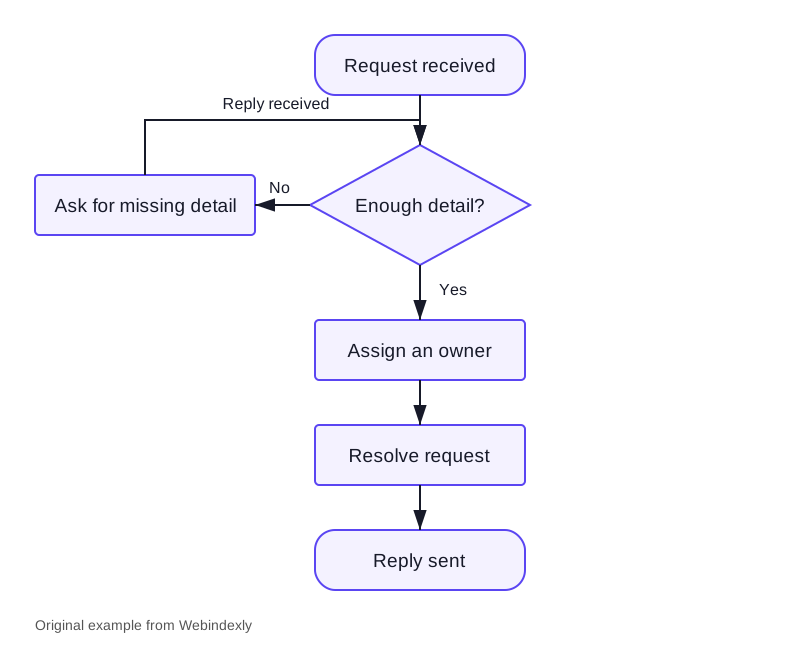
The example is deliberately small. If you can follow each branch without explaining it aloud, you have a useful foundation for a larger process.
Before you start
- Open the draw.io online editor on a computer with a keyboard and pointer, or use draw.io Desktop.
- Choose where the editable diagram will live. This guide uses a local file rather than asking you to connect a cloud account.
- Write the process in a few short sentences before drawing. You need to know the steps and the decision you are documenting.
Arranging a diagram is easier on a larger screen. Menu names can vary with the editor theme. The File menu provides the save and export routes used here.
1. Define the process before choosing shapes #
Our example handles a support request:
- Receive the request.
- Check whether it contains enough detail to act on.
- If detail is missing, ask for it and check again when the reply arrives.
- If the request is complete, assign an owner.
- Resolve the request and send a reply.
The decision is a question with two named answers: Yes and No. The No branch returns to the same check, because receiving a reply does not guarantee that the request is now complete.
This written outline prevents a common mistake: beginning with shapes and discovering halfway through that the process itself is unclear. If a step has no owner or a branch has no destination, resolve that question before adding more boxes.
2. Create a blank diagram and save the source #
Open a new blank diagram. If the editor asks where to store it, choose Device for this example. Use support-request-flow.drawio as the filename. If the editor opens directly, choose File > Save As and select a local location.
Keep the .drawio format for the working source. It stores the diagram data that you need to reopen and edit the shapes. A PNG export is useful for readers, but it should not be your only copy.
Create a folder with a clear purpose, such as Process diagrams. The location matters more than the precise name. You should know where to find the original after closing the browser.
You can also download the editable example and open it in draw.io to inspect the completed structure. Use your own copy when experimenting.
3. Add a small, consistent set of shapes #
For this example, use three conventions:
| Shape | Meaning in this diagram | Example label |
|---|---|---|
| Rounded start/end shape | Entry or completion | Request received; Reply sent |
| Rectangle | An action someone takes | Assign an owner |
| Diamond | A decision with named exits | Enough detail? |
Add the start, the decision, the three action steps, and the end. Double-click a shape to enter its label. Write actions as short verbs and objects: Ask for missing detail, Assign an owner, and Resolve request.
Avoid putting the full procedure inside the boxes. The chart communicates the sequence. Detailed instructions, exceptions, and contact information belong in the accompanying process document.
Keep the main path vertical. Put the missing-detail action to one side of the decision so the return path remains visible. Leave enough space for branch labels before you connect anything.
4. Connect shapes rather than drawing loose lines #
Use attached connectors between the shapes. One route is to select a shape and use its connection arrows to add or connect the next shape. You can also drag a connector between the appropriate connection points.
Connect the main path:
Request received → Enough detail? → Assign an owner → Resolve request → Reply sent.
Then connect the second branch:
Enough detail? → Ask for missing detail → back to Enough detail?.
Label the decision exits Yes and No. A diamond with unlabeled arrows forces the reader to infer which path matches the answer.
After connecting, move one of the shapes slightly. The arrow should remain attached. If it stays behind as a loose line, reconnect it to the shape before continuing. This small check saves rework when you later rearrange the process.
5. Make the route readable at normal size #
Line up the main-path shapes and use consistent widths where the text allows it. Keep the same font size across equivalent steps. A longer label can wrap, but it should not require a much smaller font than the rest of the diagram.
Route the No branch around the outside of the main path. Avoid crossing through labels or hiding the return arrow behind another shape. Color can support the diagram, but the branch labels must remain understandable without it.
Read the chart from the start twice: once for a complete request and once for an incomplete one. On each route, ask what the next person is supposed to do. If the answer depends on a sentence that is missing from the diagram, adjust the labels or add a short note outside the shapes.
Do not add a symbol for every exception at this stage. A complicated process may need several smaller diagrams, each linked to the appropriate detailed procedure.
6. Save, close, and reopen the editable file #
Save the .drawio source to the location you chose. Then reopen that file using File > Open From > Device, or the equivalent open-file command in the desktop app.
Check that you can select a shape, change a label, and move an attached connector. That confirms you have the editable source rather than only a flat image.
This is also a good time to create a second copy outside the active working folder. If the diagram documents a real operating process, losing its source means someone will have to reconstruct it before making the next change.
7. Export an image for the reader #
Choose File > Export as > PNG or SVG. PNG is a straightforward choice for documents and messages. SVG is useful when the destination supports it and you want scalable vector graphics.
Export the diagram area at a size that preserves readable labels. Use a background that works in the document where it will appear. Keep the editable source separately even if you choose an export option that embeds diagram data.
Open the exported file outside draw.io. Then place it in the actual document or page and inspect it at normal reading size. Look for blurry text, clipped arrows, excessive empty canvas, and labels that have become too small.
If a reviewer only needs to read the chart, send the image. If they need to maintain it, send the .drawio source as well and explain which file is the current version.
Troubleshooting #
| Problem | Check first | Useful correction |
|---|---|---|
| An arrow no longer meets its shape | Is it an attached connector or a loose line? | Reattach both ends and move a shape to verify it |
| The decision is confusing | Are the exits named? | Add Yes and No, or use more specific answers |
| The exported chart is unreadable | How large is it in the final document? | Split the process or increase the useful export size |
| The diagram has too much empty space | Is the export using a large canvas area? | Check the export area and crop to the actual diagram |
| You cannot edit the saved result | Did you keep a source file? | Open the .drawio file rather than relying on a flat image |
| Changes may be lost because saving failed | Can you access the diagram source? | Follow draw.io's documented XML-source recovery procedure |
For the last case, avoid closing the tab while the only current copy is still in it. The official save-source troubleshooting guide explains the recovery route.
Completion checklist #
- Every decision exit has a label and a destination.
- The incomplete-request route returns to the correct check.
- Moving a shape keeps its connectors attached.
- The source file reopens as an editable diagram.
- The exported image is readable in its final document.
- The person maintaining the process knows where the source lives.
Once those checks pass, extend the process only when a real additional step needs to be explained. For other tools and directory details, see draw.io and the charts and data visualization directory.
Sources and example files #
Menu and format guidance checked October 7, 2026. The support-request diagram is an original example made for this guide.



