
Lipamanka's site includes a Toki Pona dictionary alongside essays, stories, resources, and other language material.
DLIFLC
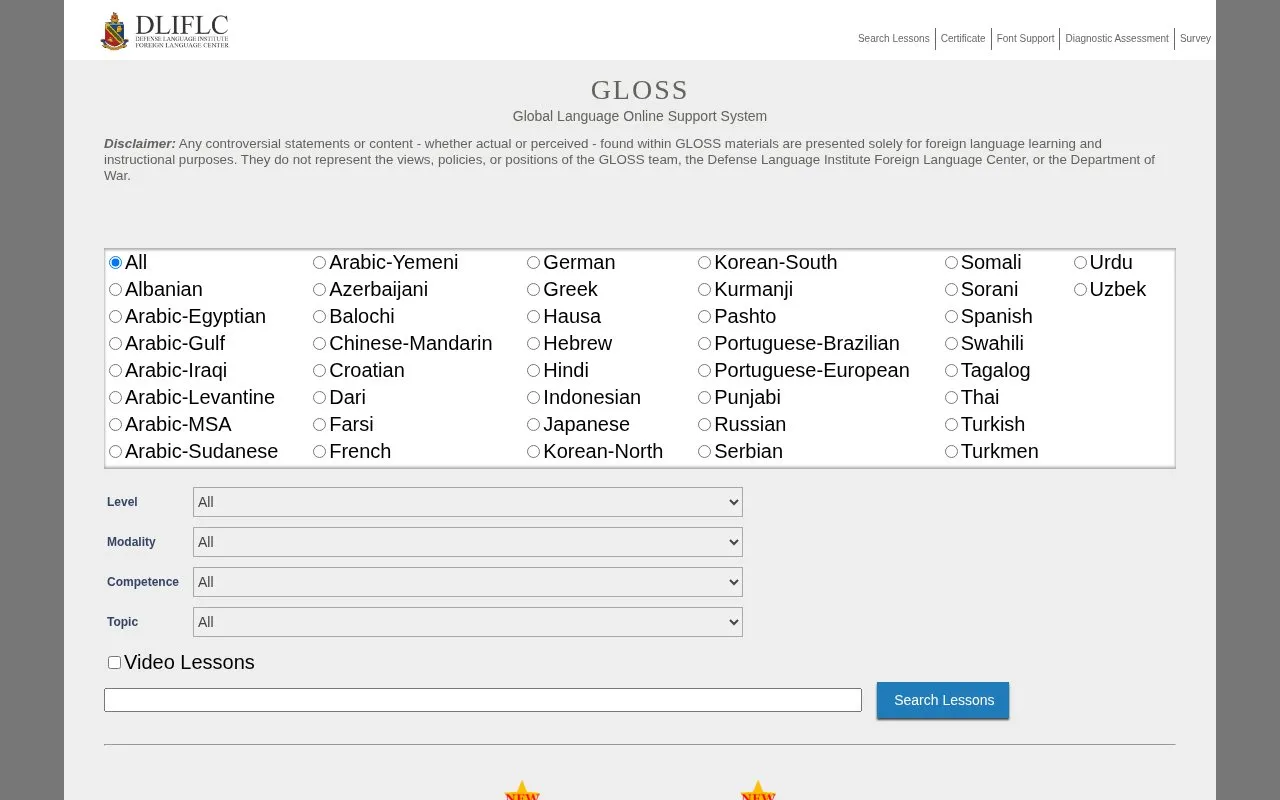
The Global Language Online Support System provides language lessons alongside survey and diagnostic assessment tools.
About DLIFLC
The Global Language Online Support System provides language lessons alongside survey and diagnostic assessment tools. Access requires a username and password login.
It includes an upload function for LOs that supports larger files and multiple files at once, with drag-and-drop and multiple-file selection where the browser supports it. Uploads show a progress bar with per-file success or failure messages, and successful uploads can be reviewed and published.
Key features
- Language lessons alongside survey tools
- Diagnostic assessment tools
- Username and password login
- Upload larger LOs and multiple LOs at once
- Drag-and-drop file upload where browser supports it
- Review and publish uploaded LOs after successful upload
Best for: People who need language lessons with survey and diagnostic assessment tools.
Good for
- Supports uploading larger files and multiple LOs at once
- Shows progress bar with itemized success or failure messages
- Allows review and publishing after successful upload
Watch out for
- Requires username and password login to access
- Drag-and-drop and multiple-file selection depend on browser support
- Existing lesson must be deleted before uploading a new version
DLIFLC at a glance
- Website
- gloss.dliflc.edu
- Category
- Education & Learning › Language Learning
- Type
- Website
- Pricing
- Not confirmed. Check the site
- Platforms
- Web
- Open source
- Not stated
- Last checked
- Oct 5, 2026 · Online when checked
- Listed
- Oct 5, 2026
DLIFLC alternatives
Tools and sites you could use instead, ranked by how closely they match.

Wasona teaches Toki Pona through lessons on pronunciation, writing systems, vocabulary, and simple sentences.
A short introduction presents Esperanto’s language structure and explains how its consistent system works.
SignWriting introduces Sutton's SignWriting system and provides sign language writing resources.

LibreTexts Languages provides reference material about languages and systems of communication.

jpdb combines a Japanese dictionary with a learning system for kanji and vocabulary.
Popular in Language Learning
Well-known listings from the same topic.
iOSapps.apple.com/hk/app/cantonese-pronunciation-…JapaneseWithAnimejapanesewithanime.comEpisodenepisoden.comSignSchoolsignschool.comHelloChinesehellochinese.ccFluentWithStoriesfluentwithstories.com


DLIFLC FAQ
How can I add multiple files for upload?
Click "Add Files" to browse and, where the browser supports it, hold CTRL while clicking to select multiple LOs, or drag files into the "Drag files here" panel, then click "Start Upload".
How do I know if an upload succeeded?
The progress bar updates during upload, followed by an itemized list. Successful LOs show a green checkmark, while failed LOs show a yellow alert icon with the reason in the error message.
What can I do after a successful upload?
Continue by reviewing and/or publishing the LO.
Is something wrong or out of date?
Tell us and an editor will check it.
Own this website?
Claim this listing
Claim the listing and suggest updates yourself. An editor checks every claim first.