

Time Machine
Apple’s macOS backup feature for automatic file history on supported external or network storage.
About Time Machine
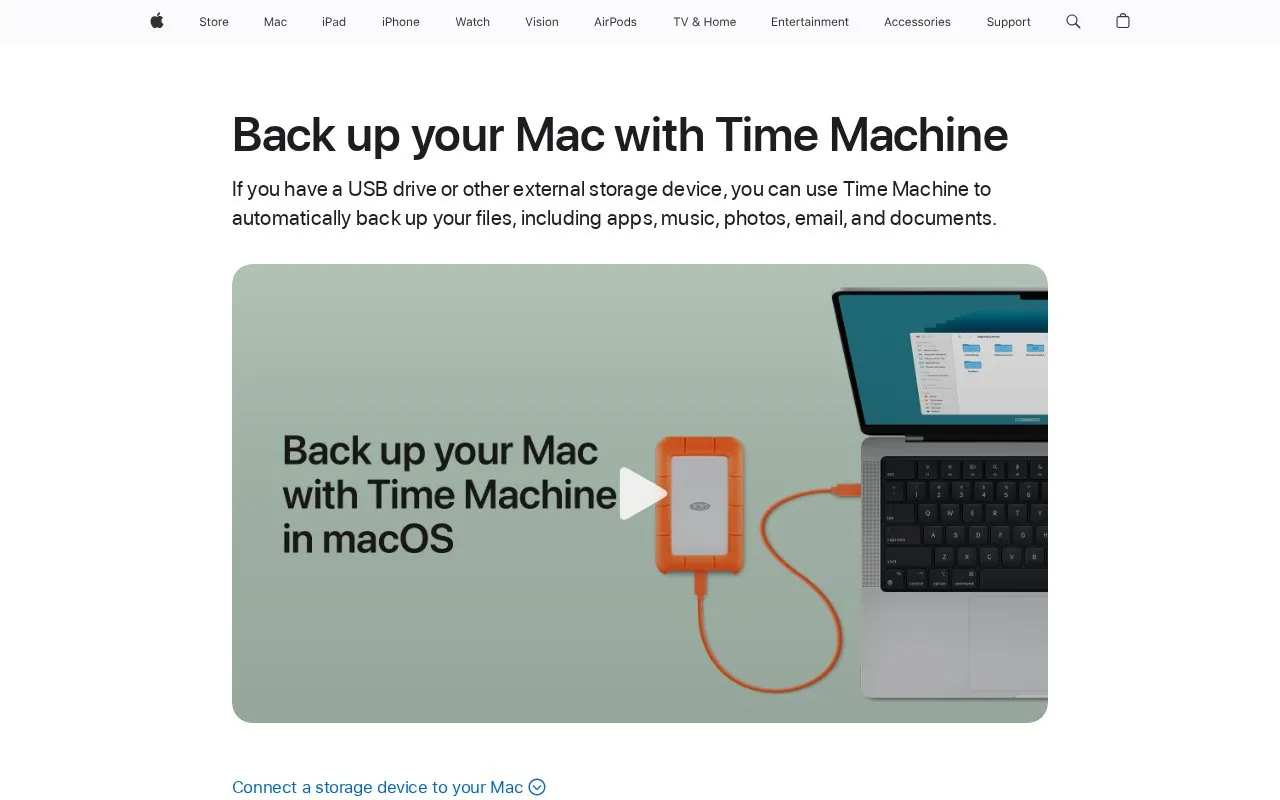
Time Machine is Apple's built-in backup feature for Mac computers running macOS. It automatically backs up files, including apps, music, photos, email, and documents, to an external storage device such as a USB or Thunderbolt drive. Once the backup disk is set up, the Mac begins backing up on its own, and users can also start a backup manually from the Time Machine menu in the menu bar.
Time Machine keeps hourly backups for the past 24 hours, daily backups for the past month, and weekly backups for earlier months. Later backups copy only files that changed since the previous backup. The oldest backups are deleted when the backup disk is full. Users can restore some or all files to the same Mac or to a different Mac. The optional Encrypt Backup setting requires a backup password, which is needed to restore files from an encrypted backup.
Key features
- Automatic hourly, daily, and weekly backup schedule
- Backs up apps, music, photos, email, and documents
- Incremental backups that copy only files changed since the last backup
- Restore some or all files to the same or a different Mac
- Optional Encrypt Backup setting that requires a backup password
- Adjustable backup frequency in macOS Ventura 13 or later
Best for: Mac users who have an external USB or Thunderbolt drive and want automatic, local file history backups built into macOS.
Good for
- Free, according to known pricing
- Only changed files are copied after the first backup, so later backups are faster
- The Mac can be used while a backup is running
Watch out for
- The backup disk should have at least twice the storage capacity of the Mac
- The oldest backups are deleted when the backup disk is full
- The first backup may take longer than expected
Time Machine at a glance
- Category
- Software & Utilities › Backup & Recovery
- Type
- Online tool
- Pricing
- Free
- Open source
- Not stated
- Last checked
- Oct 9, 2026 · Online when checked
- Listed
- Oct 9, 2026
Guides for Backup & Recovery
Time Machine alternatives
Tools and sites you could use instead, ranked by how closely they match.

The Windows file-history feature for retaining and restoring earlier copies of personal files on separate storage.
Free

Kopia is open-source backup software for Windows, Mac, and Linux, with encrypted, compressed, and deduplicated backups using chosen cloud storage.
FreeOpen source
6 alternatives
Duplicati provides encrypted backups to cloud storage and local hardware, with support listed for S3, WebDAV, and SFTP.
Featured in
 8 sites
Best of
8 Best Free Backup Software Picks in 2026
Free backup software should give you a way back after a deleted folder or a failed drive. These picks cover Windows…
Popular in Backup & Recovery
Well-known listings from the same topic.
UrBackupurbackup.orgAOMEI Backupperubackup.comWindows File Recoveryapps.microsoft.com/detail/9n26s50ln705Borgborgbackup.orgFolderClonefolderclone.comRescuezillarescuezilla.com


Time Machine FAQ
What happens when the backup disk is full?
The oldest backups are deleted to make room for new ones. If Time Machine needs more space than the disk has, the Mac notifies the user.
Can I use the Time Machine backup disk for other files?
Apple recommends using the backup disk only for Time Machine backups. Advanced users can add an APFS volume to the external drive and use one volume for Time Machine and the other for other files.
What should I do before disconnecting the backup disk?
Eject the backup disk or shut down the Mac first. When the disk is reconnected, Time Machine resumes its backup schedule automatically.
Is something wrong or out of date?
Tell us and an editor will check it.
Own this website?
Claim this listing
Claim the listing and suggest updates yourself. An editor checks every claim first.