

GPU-Z reports graphics processor information; the supplied page lists its latest version and download details.
CPU-Z
CPU-Z for Windows reports processor, motherboard, and memory information, including model details and real-time frequency measurements.
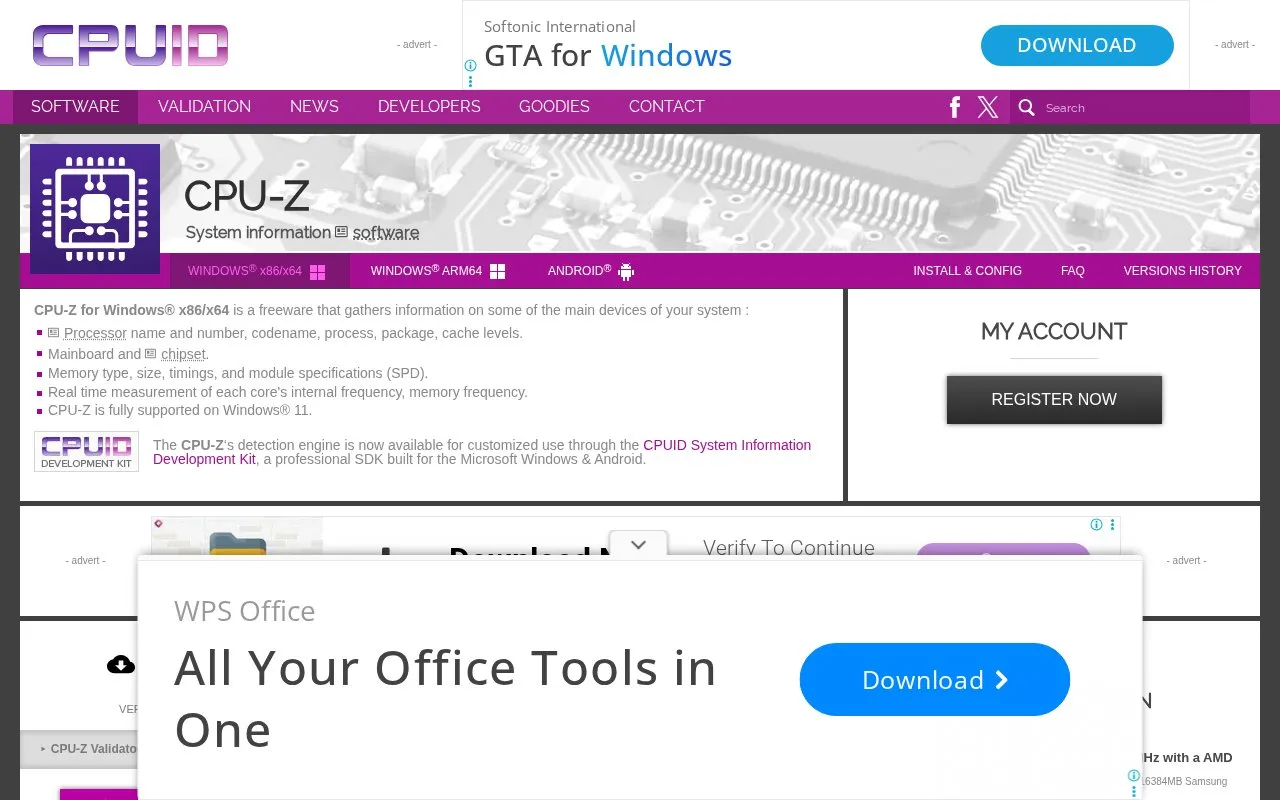
About CPU-Z
CPU-Z for Windows x86/x64 is a freeware tool that gathers information on the processor, mainboard, and memory. It reports processor name and number, codename, process, package, and cache levels, plus mainboard and chipset, and memory type, size, timings, and SPD module specifications. It also measures each core's internal frequency and memory frequency in real time.
The program is fully supported on Windows 11 and is offered in 32-bit and 64-bit setup and ZIP packages, including English and Chinese builds. Settings can be adjusted with a cpuz.ini file in the same folder as the executable; if no file is present, default values are used.
Key features
- Reports processor name, codename, process, package, cache levels
- Reports mainboard and chipset information
- Reports memory type, size, timings, and SPD specifications
- Measures each core's internal frequency in real time
- Measures memory frequency in real time
- Offers installer and ZIP builds in English and Chinese
Best for: People who need to check processor, motherboard, and memory details on a Windows PC.
Good for
- Described as freeware for Windows x86/x64
- Fully supported on Windows 11
- Offers installer and stand-alone ZIP packages
CPU-Z at a glance
- Category
- Software & Utilities › System Utilities
- Type
- Website
- Pricing
- Not confirmed. Check the site
- Platforms
- Android, Web, Windows
- Open source
- Not stated
- Language
- English
- Last checked
- Oct 5, 2026 · Online when checked
- Listed
- Oct 5, 2026
CPU-Z alternatives
Tools and sites you could use instead, ranked by how closely they match.
Popular in System Utilities
Well-known listings from the same topic.
Phone Linkmicrosoft.com/windows/sync-across-your-devicesMicrosoft SDmicrosoft.com/en-us/software-downloadPowerToyslearn.microsoft.com/en-us/windows/powertoysWinWorldPCwinworldpc.comGeekUninstallergeekuninstaller.com0Install0install.net


CPU-Z FAQ
How do I install CPU-Z?
Run the setup executable file and follow the installation process. It creates Start menu and desktop entries and installs the correct x32 or x64 binary for the system.
How do I remove CPU-Z?
Remove it from the Add or Remove Programs window, or choose Uninstall CPU-Z from Start menu, Programs, CPUID, CPU-Z.
Where does the configuration file go?
The cpuz.ini file must be in the same directory as cpuz.exe. Use of the file is optional; if no .ini file is found, default values are used.
Is something wrong or out of date?
Tell us and an editor will check it.
Own this website?
Claim this listing
Claim the listing and suggest updates yourself. An editor checks every claim first.