
Xbox Game Bar
Record gameplay and supported application windows on Windows through Game Bar capture controls, without installing a separate recorder.
About Xbox Game Bar
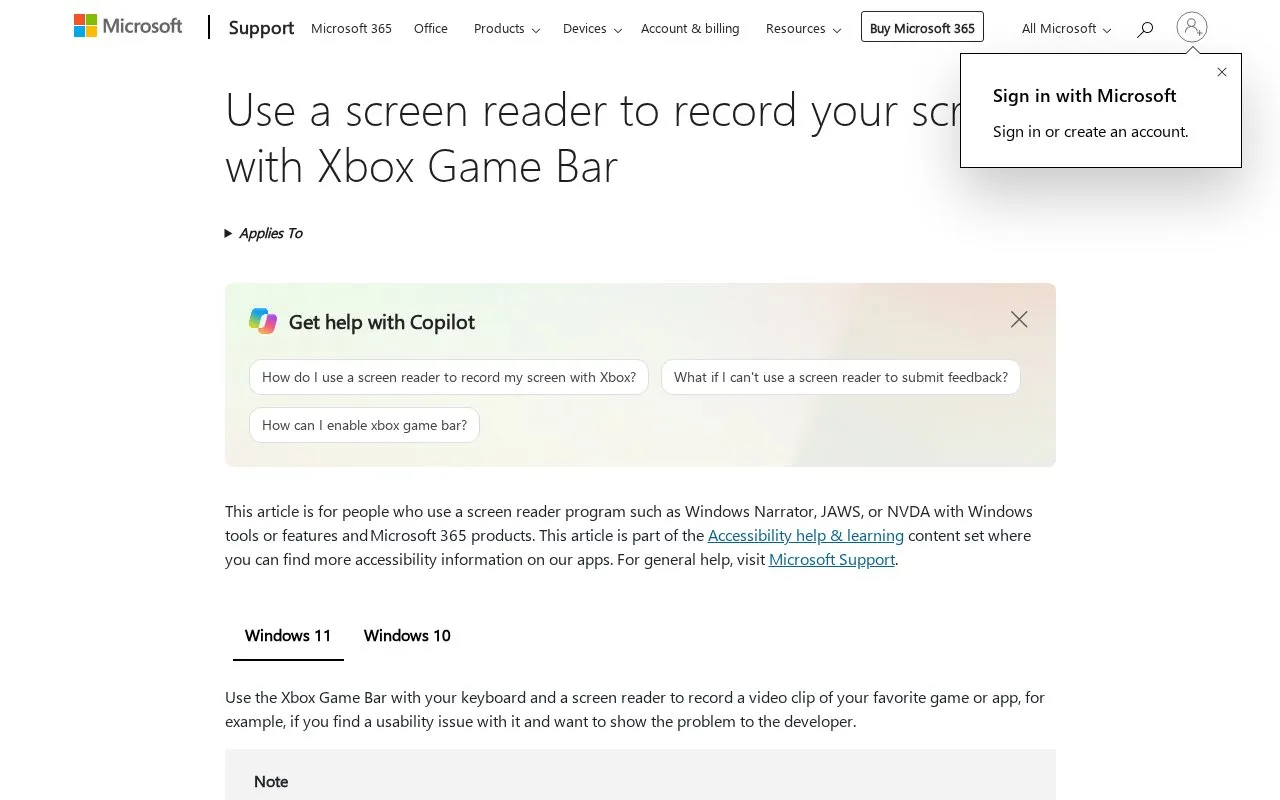
Xbox Game Bar records video clips of a game or app on Windows 10 and Windows 11. It can be operated with a keyboard and a screen reader such as Windows Narrator, JAWS, or NVDA, using shortcuts to open controls, start and stop recording, and toggle the microphone.
Recordings can include system audio selected in Capturing settings and are saved as MP4 files in the Videos\Captures folder, with file names that include the app name and date and time. Screenshots can also be saved as PNG files to the Captures folder.
Key features
- Record video clips of active game or app window
- Start and stop recording with Windows+Alt+R
- Toggle microphone during recording with Windows+Alt+M
- Include system audio via Capturing settings
- Save recordings as MP4 in Videos/Captures folder
- Capture screenshots as PNG with Windows+Alt+Print Screen
Best for: People on Windows 10 or 11 who need to record a game or app clip using a keyboard and screen reader.
Good for
- Built-in capture without installing a separate recorder
- Operable by keyboard with Narrator, JAWS, or NVDA
- Recordings save as MP4 files named by app and timestamp
Watch out for
- Available only on Windows 10 and Windows 11
- Xbox Game Bar must be enabled before recording
- Recording requires opening the target game or app first
Xbox Game Bar at a glance
- Type
- Online tool
- Pricing
- Free
- Platforms
- Windows
- Open source
- Not stated
- Last checked
- Oct 9, 2026 · Online when checked
- Listed
- Oct 7, 2026
Guides for Screen Recording & Streaming Tools
Xbox Game Bar alternatives
Tools and sites you could use instead, ranked by how closely they match.

Segra records gameplay through OBS and can automatically clip highlights across supported games; its page describes it as free and open source.
Open source
24 alternativesGoogle Screen Recorder uses JavaScript to capture browser audio and screen content, and states that captures are not sent to Google.

Ascent automatically records gameplay highlights on Windows for games including League of Legends, Valorant, and CS2.
Free
6 alternatives
OBS Blade uses the OBS WebSocket plugin to control streams and recordings from a separate app built with Flutter.
Open source
24 alternatives
Record screen and webcam videos with editing and hosting options. The free recorder has a 15-minute limit; paid plans expand editing and sharing.
Freemium
16 alternatives
SteelSeries Moments records and shares gameplay clips, with AI auto-clipping support for Street Fighter 6.
Featured in
 8 sites


Best of
Best Free Screen Recorders for Tutorials and Quick Updates
The best free screen recorders fall into two groups: apps that save a video you control and services that make sharing…
Popular in Screen Recording & Streaming Tools
Well-known listings from the same topic.
StreamElementsstreamelements.comStreamlabsstreamlabs.comStreamer.botstreamer.botAwesome Streaminggithub.com/juancarlospaco/awesome-streaming-to…VDO.Ninjavdo.ninjaStreamrecorderstreamrecorder.io


Xbox Game Bar FAQ
How do I start and stop recording?
Go to the game or app you want to record, press Windows+Alt+R to start, then press Windows+Alt+R again to stop.
Where are recordings and screenshots saved?
Recordings are saved as MP4 files under Videos in a folder called Captures, with the app name and date and time in the file name. Screenshots are saved to the same Captures folder as PNG files.
How do I include system audio in the recording?
Press Windows+G to show the controls, open Settings, go to Capturing, and select the All option for game, enabled mic, apps, and system audio.
Is something wrong or out of date?
Tell us and an editor will check it.
Own this website?
Claim this listing
Claim the listing and suggest updates yourself. An editor checks every claim first.